- Data input
- Data output
- Data summary
- Summarizing data with figures
Agenda
Getting data into R
Importing data into R is fairly simple. We can use built-in functions or libraries to read data from the following sources:
- Text file (.txt)
- Comma-separated values (.csv)
- Excel (.xlsx or .xls)
- Database table
Common data formatting
Regardless the sources, there are common characteristics about how data are formatted
- There are usually multiple columns
- There is a clear way to separate columns
- comma (
,), semicolon (;), vertical bar (|), tab (\t), etc.
- comma (
- The first line often contains the names of the columns
Example data files
Note 1: If your browser opens the file directly (rather than downloading the file), you can still download/save it by entering
ctrlandstogether.Note 2: Some of your data may contain missing values. Here is an example:
Working directory
Your working directory is the folder on your computer in which you are currently working.
# Show your current working directory
getwd()

# List the files and folders in the current working directory
list.files()

# Set your working directory; make sure the directory exist!!
# Windows example #
setwd("D:/CIS4730") #NOTE: / (forward slash)
                    #instead of \ (backward slash)
How to find a file’s (or a folder’s) path
- On Windows PC:
- Windows - Option 1: right-click / Copy as path
- Windows - Option 2:

- On Mac:
- Mac - Option 1: Right-click + OPTION key / Copy … as Pathname
- Mac - Option 2: CMD + i or drag file to Terminal
Creating an RStudio Project
An RStudio Project points to a directory for a project and uses that directory as your default working directory
If you are in a Project, you do not need to run
setwd(...)whenever you restart your RStudio
Let’s create a project for this course
Step 1: Create a folder CIS4730 on your computer. Remember where it is. For example, if you are using a Windows PC, you can put the folder under D:\CIS4730.
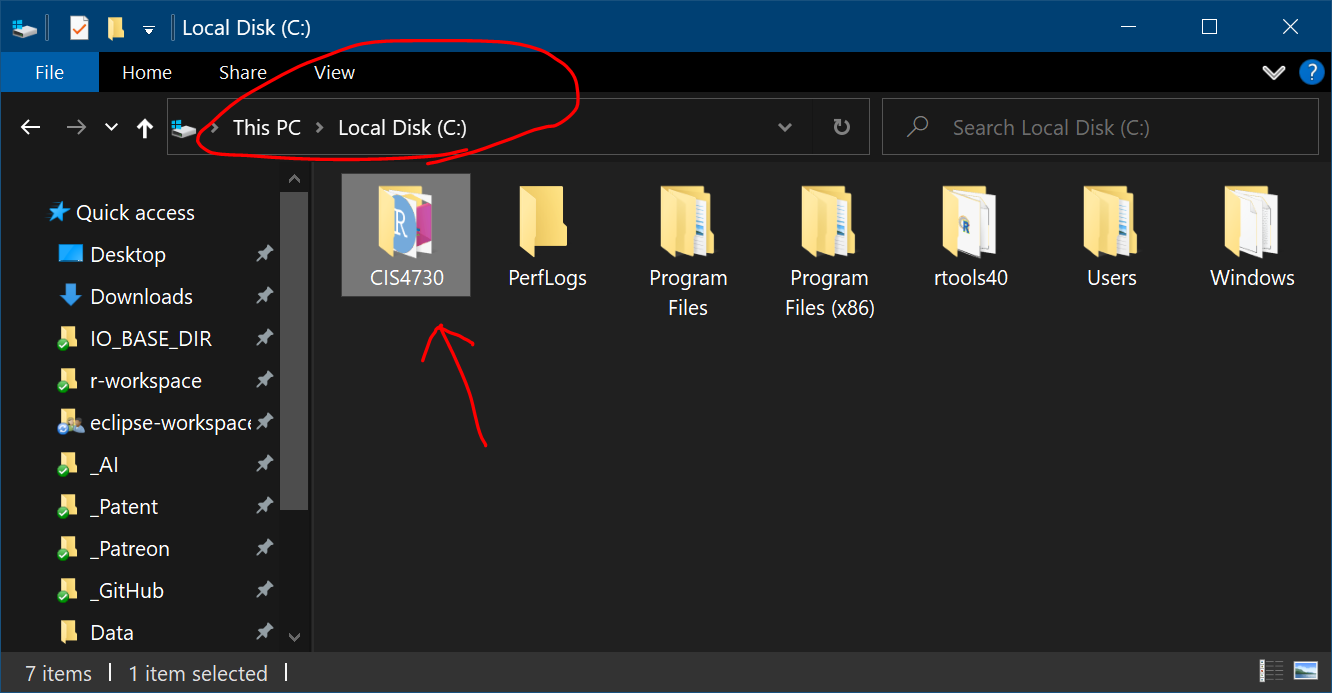
Let’s create a project for this course
Step 2: Click the Project icon on the top right corner of RStudio and choose New Project
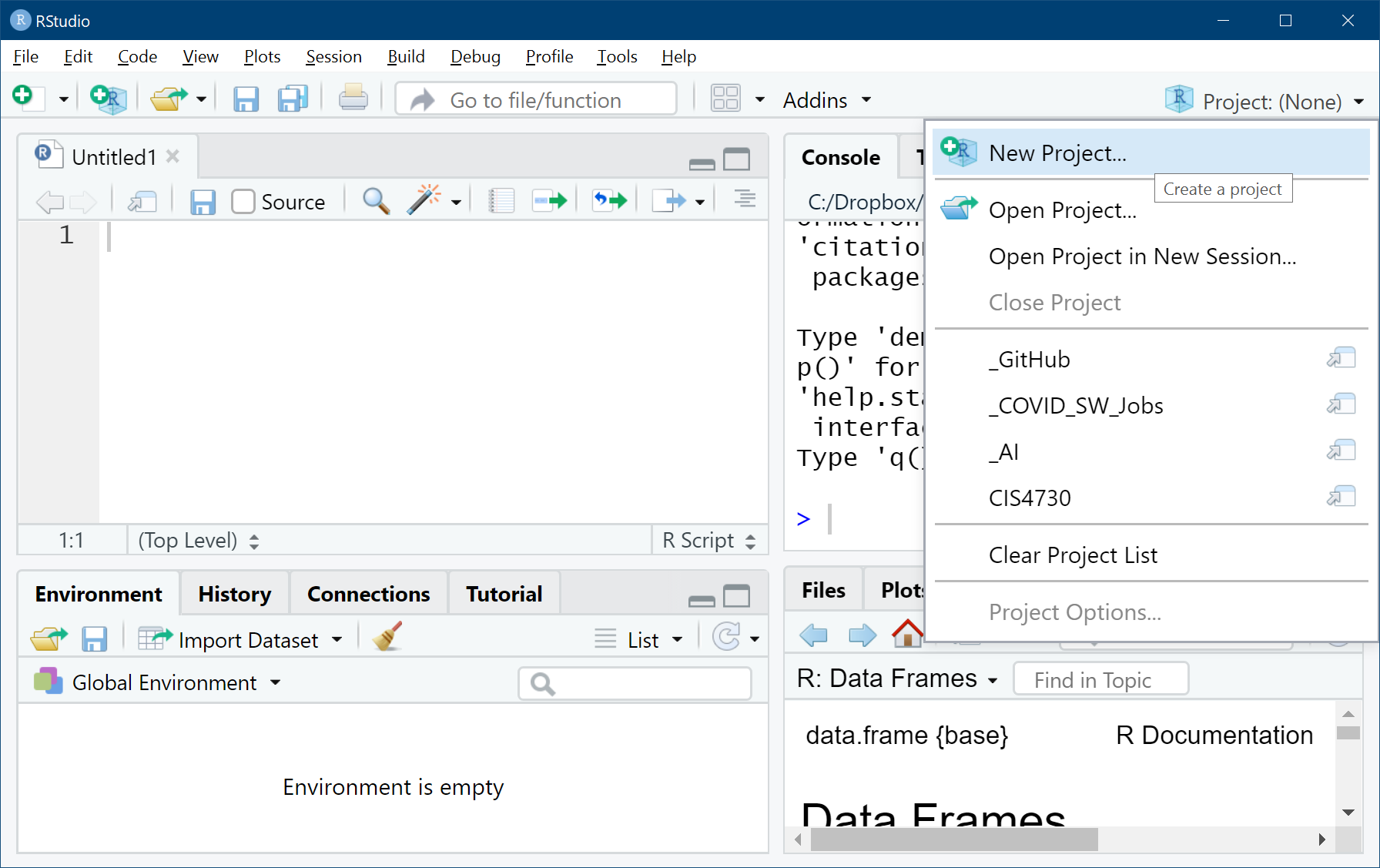
Let’s create a project for this course
Step 3: Choose to use an existing directory
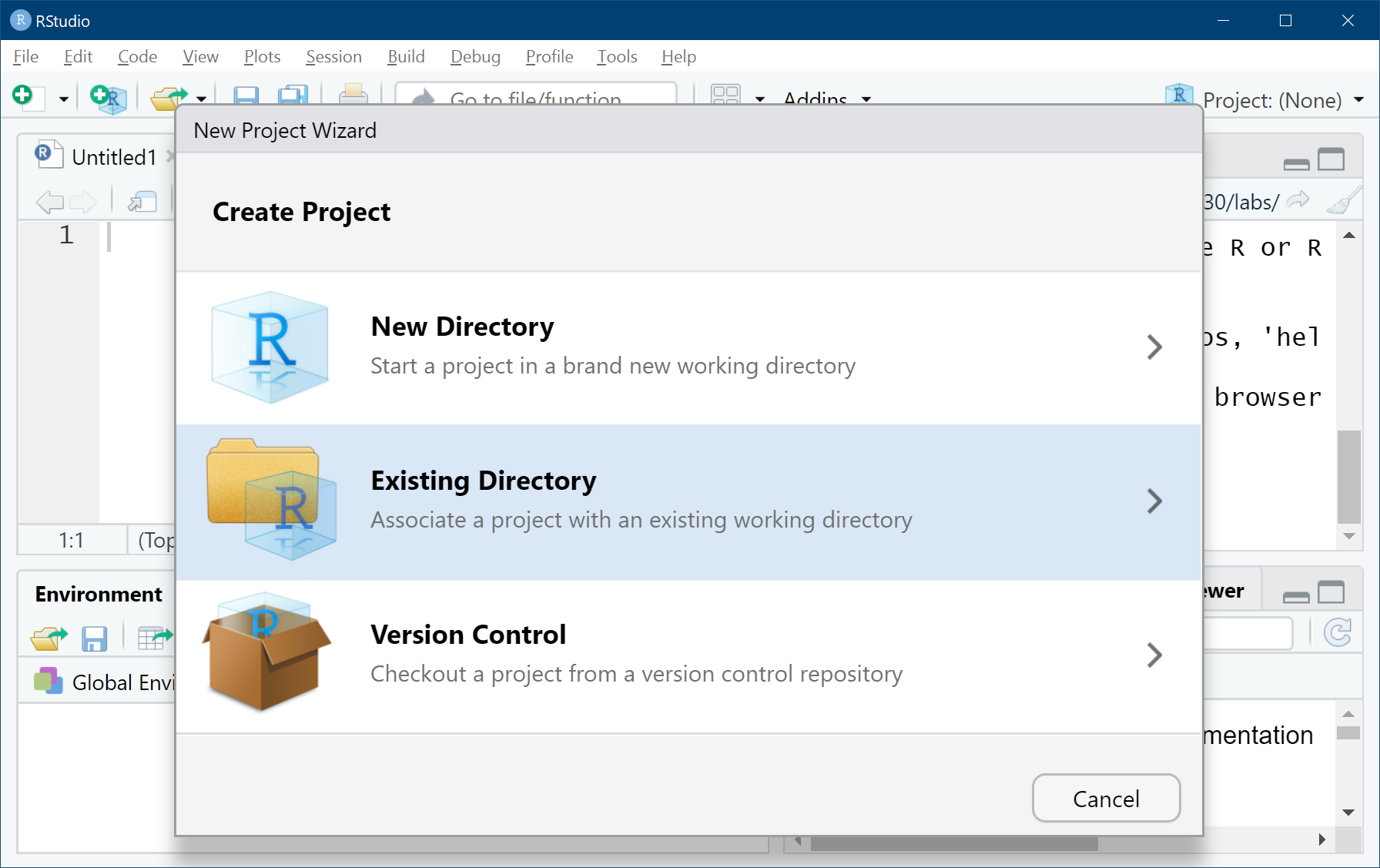
Let’s create a project for this course
Step 4: Click Browse to navigate to the directory you just created in Step 1 and then click the Create Project button
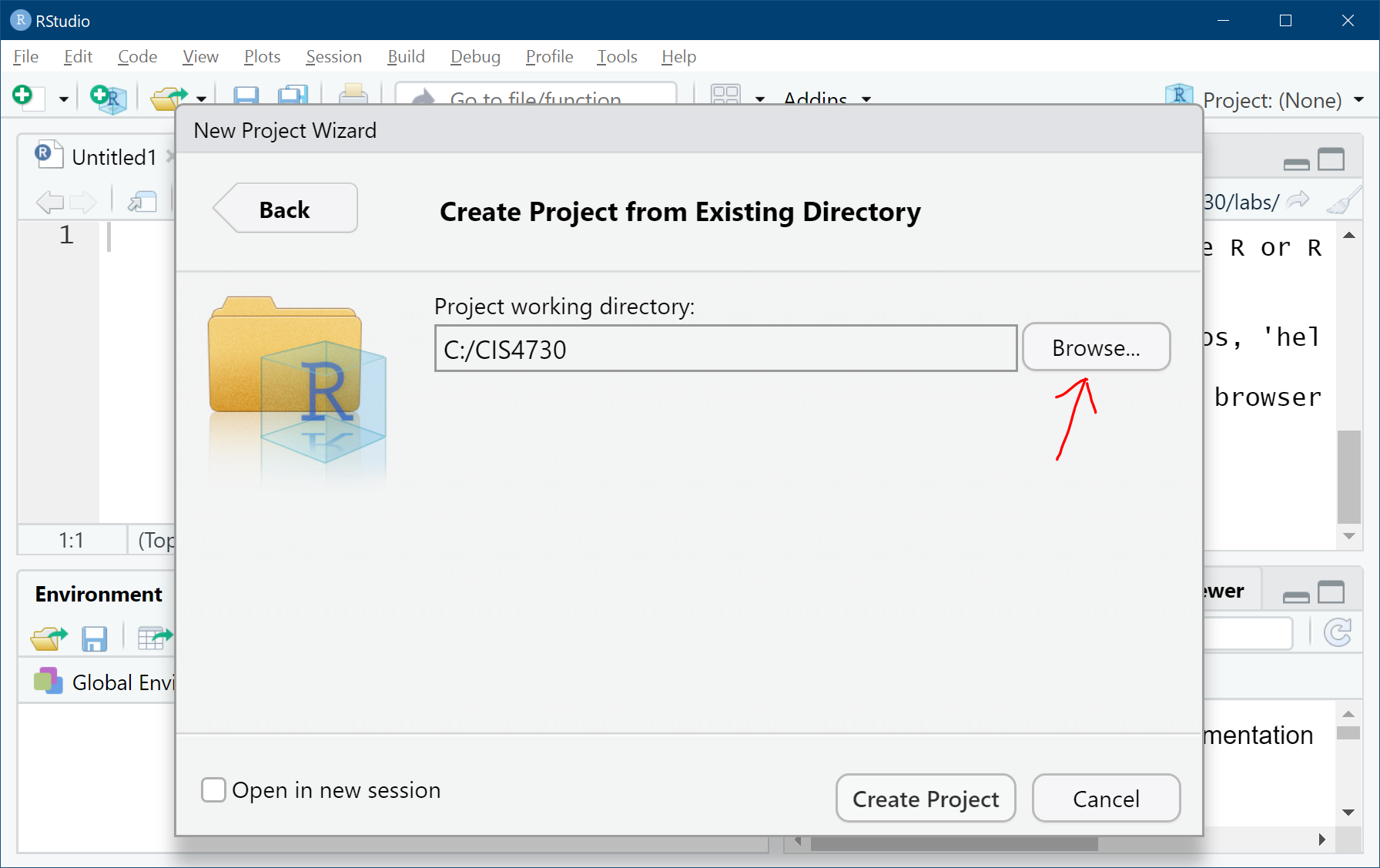
Let’s create a project for this course
Step 5: Done! You can now put all the data files into that project directory and they are accessible via “relative path” (more on this later).
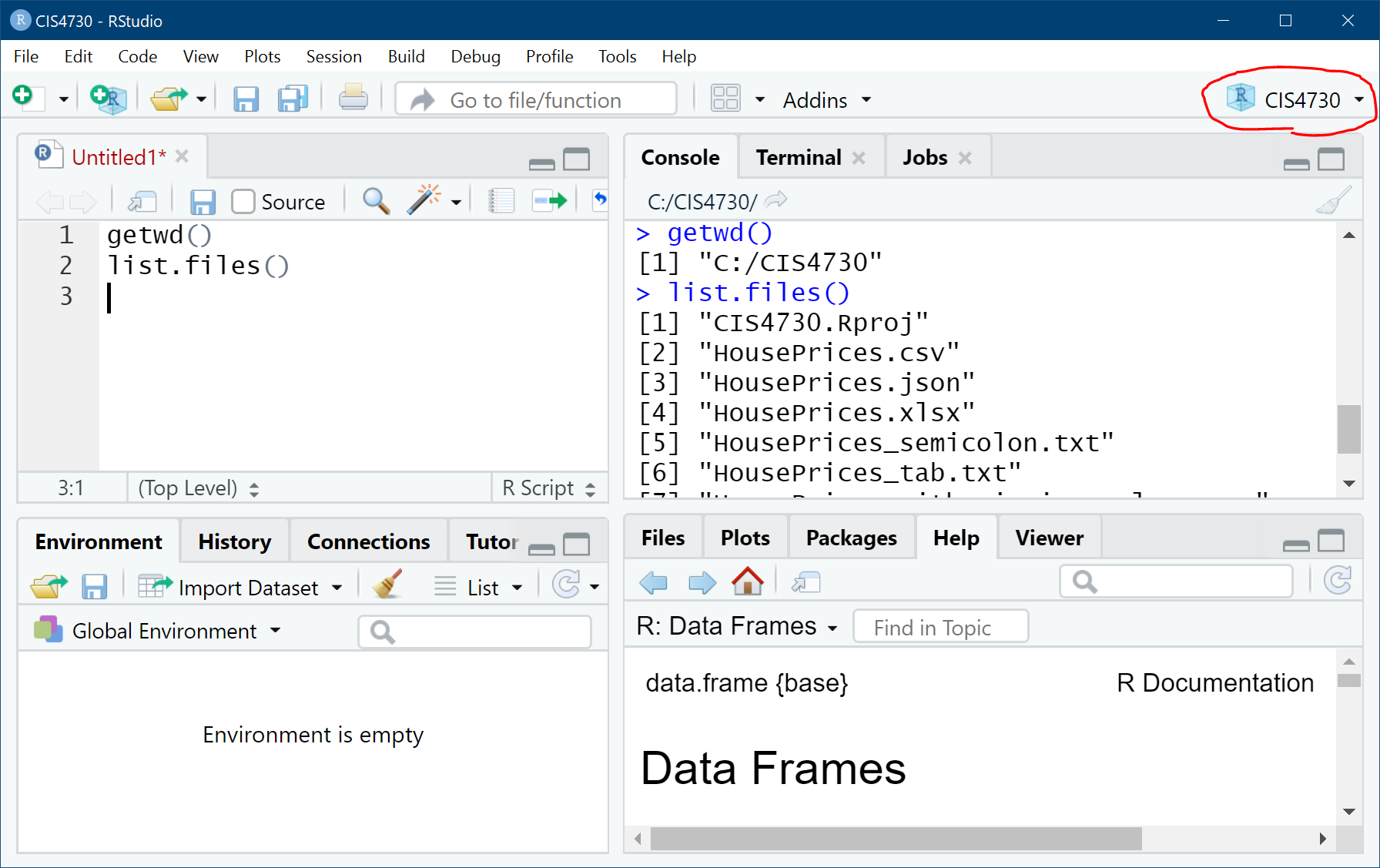
Your turn
1. Follow the steps to create a project in RStudio
2. Download all data files on slide #5 and move them into the project folder
3. Run list.files() in the R console.
Do you see those files?
Important: From this point forward and throughout the rest of the semester, I will assume that you are in the CIS4730 project when you are developing R code in RStudio.
Read text file
You need to specify the path to the text file.
- Read file through an
absolutepath.- “D:/CIS4730/Lab-03.data/HousePrices.csv”
- Read file through an
relativepath.- “./Lab-03.data/HousePrices.csv”
df<-read.table(file="./Lab-03.data/HousePrices.csv",
               sep=",", header=TRUE, stringsAsFactors=FALSE)

class(df) # R will convert the file to a data frame
## [1] "data.frame"
What the data looks like?
head() is a function allows you to see the top few rows of the data frame
head(df, n=5) # n indicates how many rows you'd like to see
##   X  price lot_size waterfront age land_value construction air_cond     fuel
## 1 1 132500     0.09         No  42      50000           No       No Electric
## 2 2 181115     0.92         No   0      22300           No       No      Gas
## 3 3 109000     0.19         No 133       7300           No       No      Gas
## 4 4 155000     0.41         No  13      18700           No       No      Gas
## 5 5  86060     0.11         No   0      15000          Yes      Yes      Gas
##        heat   sewer living_area fireplaces bathrooms rooms
## 1  Electric Private         906          1       1.0     5
## 2 Hot Water Private        1953          0       2.5     6
## 3 Hot Water  Public        1944          1       1.0     8
## 4   Hot Air Private        1944          1       1.5     5
## 5   Hot Air  Public         840          0       1.0     3
Because csv files are very common, there is another function in R that makes it easier to read csv files:
df3 <- read.csv(file="./Lab-03.data/HousePrices.csv", header=TRUE,
                stringsAsFactors=FALSE)
head(df, n=4)
##   X  price lot_size waterfront age land_value construction air_cond     fuel
## 1 1 132500     0.09         No  42      50000           No       No Electric
## 2 2 181115     0.92         No   0      22300           No       No      Gas
## 3 3 109000     0.19         No 133       7300           No       No      Gas
## 4 4 155000     0.41         No  13      18700           No       No      Gas
##        heat   sewer living_area fireplaces bathrooms rooms
## 1  Electric Private         906          1       1.0     5
## 2 Hot Water Private        1953          0       2.5     6
## 3 Hot Water  Public        1944          1       1.0     8
## 4   Hot Air Private        1944          1       1.5     5
Read other text files
The key is to specify the correct column separator character. When there is missing values in your data, you need to tell R how to recognize these missing values.
df_semicolon <- read.table(file="./Lab-03.data/HousePrices_semicolon.txt",
                           sep=";", header=TRUE, stringsAsFactors=FALSE)

df_tab <- read.table(file="./Lab-03.data/HousePrices_tab.txt",
                     sep="\t", header=TRUE, stringsAsFactors=FALSE)

df_csv_na <- read.table(file="./Lab-03.data/HousePrices_with_missing_values.csv",
                        sep=",",header=TRUE, stringsAsFactors=FALSE,
                        na.strings = c("","NA", "Not Available"))
Parameters in read.table() & read.csv()
sep
- specify the character/string that seperates columns
stringsAsFactors
- logical: should character vectors be converted to factors? Usually, set to
FALSE.
na.strings
- a vector of strings which are to be interpreted as NA values.
Your turn
Try if you can read the files HousePrices_semicolon.txt, HousePrices_tab.txt, & HousePrices_with_missing_values.csv into R,
and save them to different data frames df_semicolon, df_tab, and df_csv_na.
You can then verify if you have these data in R by typing:
head(df_semicolon)
head(df_tab)
head(df_csv_na)
Read data from the Internet
url <- "https://stats.idre.ucla.edu/wp-content/uploads/2016/02/test-1.csv"
df <- read.csv(file=url, header=TRUE,
               stringsAsFactors=FALSE)
head(df)
##    make   model mpg weight price
## 1   amc concord  22   2930  4099
## 2   amc   oacer  17   3350  4749
## 3   amc  spirit  22   2640  3799
## 4 buick century  20   3250  4816
## 5 buick electra  15   4080  7827
Read Excel file
To read Excel data, we need to use a library: readxl
First, you need to install the package on your computer.
install.packages("readxl") # R will then go online and donwload the libray
library("readxl") # You need to load the library into R before you can use it.
df <- read_excel("./Lab-03.data/HousePrices.xlsx", col_names = TRUE)
head(df, n=3)
## # A tibble: 3 x 15
##    ...1  price lot_size waterfront   age land_value construction air_cond fuel
##   <dbl>  <dbl>    <dbl> <chr>      <dbl>      <dbl> <chr>        <chr>    <chr>
## 1     1 132500     0.09 No            42      50000 No           No       Elect~
## 2     2 181115     0.92 No             0      22300 No           No       Gas
## 3     3 109000     0.19 No           133       7300 No           No       Gas
## # ... with 6 more variables: heat <chr>, sewer <chr>, living_area <dbl>,
## #   fireplaces <dbl>, bathrooms <dbl>, rooms <dbl>
Read data from database
The
RODBCpackage provides access to Microsoft Access and Microsoft SQL ServerThe
RMySQLpackage provides an interface to MySQL.The
ROraclepackage provides an interface for Oracle.
You just need to install these libraries and follow their reference manuals.
install.packages("RODBC")
install.packages("RMySQL")
install.packages("ROracle")
Write data to a file
file_path <- "my_test.csv"
write.csv(df, file=file_path, row.names = FALSE)
# row.names are usually not very useful. So I like to exclude them.

file_path <- "my_test2.csv"
write.table(df, file_path, sep=",", row.names = FALSE)

file_path <- "my_test_semicolon.txt"
write.table(df, file_path, sep=";", row.names = FALSE)

file_path <- "my_test_tab.txt"
write.table(df, file_path, sep="\t", row.names = FALSE)
Data structure: str()
str(df) #structure
## tibble [1,728 x 15] (S3: tbl_df/tbl/data.frame)
##  $ ...1        : num [1:1728] 1 2 3 4 5 6 7 8 9 10 ...
##  $ price       : num [1:1728] 132500 181115 109000 155000 86060 ...
##  $ lot_size    : num [1:1728] 0.09 0.92 0.19 0.41 0.11 0.68 0.4 1.21 0.83 1.94 ...
##  $ waterfront  : chr [1:1728] "No" "No" "No" "No" ...
##  $ age         : num [1:1728] 42 0 133 13 0 31 33 23 36 4 ...
##  $ land_value  : num [1:1728] 50000 22300 7300 18700 15000 14000 23300 14600 22200 21200 ...
##  $ construction: chr [1:1728] "No" "No" "No" "No" ...
##  $ air_cond    : chr [1:1728] "No" "No" "No" "No" ...
##  $ fuel        : chr [1:1728] "Electric" "Gas" "Gas" "Gas" ...
##  $ heat        : chr [1:1728] "Electric" "Hot Water" "Hot Water" "Hot Air" ...
##  $ sewer       : chr [1:1728] "Private" "Private" "Public" "Private" ...
##  $ living_area : num [1:1728] 906 1953 1944 1944 840 ...
##  $ fireplaces  : num [1:1728] 1 0 1 1 0 1 1 1 0 0 ...
##  $ bathrooms   : num [1:1728] 1 2.5 1 1.5 1 1 1.5 1.5 1.5 1.5 ...
##  $ rooms       : num [1:1728] 5 6 8 5 3 8 8 9 8 6 ...
Data summary: summary()
summary(df)
##       ...1            price           lot_size        waterfront
##  Min.   :   1.0   Min.   :  5000   Min.   : 0.0000   Length:1728
##  1st Qu.: 432.8   1st Qu.:145000   1st Qu.: 0.1700   Class :character
##  Median : 864.5   Median :189900   Median : 0.3700   Mode  :character
##  Mean   : 864.5   Mean   :211967   Mean   : 0.5002
##  3rd Qu.:1296.2   3rd Qu.:259000   3rd Qu.: 0.5400
##  Max.   :1728.0   Max.   :775000   Max.   :12.2000
##       age           land_value     construction         air_cond
##  Min.   :  0.00   Min.   :   200   Length:1728        Length:1728
##  1st Qu.: 13.00   1st Qu.: 15100   Class :character   Class :character
##  Median : 19.00   Median : 25000   Mode  :character   Mode  :character
##  Mean   : 27.92   Mean   : 34557
##  3rd Qu.: 34.00   3rd Qu.: 40200
##  Max.   :225.00   Max.   :412600
##      fuel               heat              sewer            living_area
##  Length:1728        Length:1728        Length:1728        Min.   : 616
##  Class :character   Class :character   Class :character   1st Qu.:1300
##  Mode  :character   Mode  :character   Mode  :character   Median :1634
##                                                           Mean   :1755
##                                                           3rd Qu.:2138
##                                                           Max.   :5228
##    fireplaces       bathrooms       rooms
##  Min.   :0.0000   Min.   :0.0   Min.   : 2.000
##  1st Qu.:0.0000   1st Qu.:1.5   1st Qu.: 5.000
##  Median :1.0000   Median :2.0   Median : 7.000
##  Mean   :0.6019   Mean   :1.9   Mean   : 7.042
##  3rd Qu.:1.0000   3rd Qu.:2.5   3rd Qu.: 8.250
##  Max.   :4.0000   Max.   :4.5   Max.   :12.000
First few rows of data
head(df, n=2)
## # A tibble: 2 x 15
##    ...1  price lot_size waterfront   age land_value construction air_cond fuel
##   <dbl>  <dbl>    <dbl> <chr>      <dbl>      <dbl> <chr>        <chr>    <chr>
## 1     1 132500     0.09 No            42      50000 No           No       Elect~
## 2     2 181115     0.92 No             0      22300 No           No       Gas
## # ... with 6 more variables: heat <chr>, sewer <chr>, living_area <dbl>,
## #   fireplaces <dbl>, bathrooms <dbl>, rooms <dbl>
df[1:2,] # df[ rows_you_want, columns_you_want ]
## # A tibble: 2 x 15
##    ...1  price lot_size waterfront   age land_value construction air_cond fuel
##   <dbl>  <dbl>    <dbl> <chr>      <dbl>      <dbl> <chr>        <chr>    <chr>
## 1     1 132500     0.09 No            42      50000 No           No       Elect~
## 2     2 181115     0.92 No             0      22300 No           No       Gas
## # ... with 6 more variables: heat <chr>, sewer <chr>, living_area <dbl>,
## #   fireplaces <dbl>, bathrooms <dbl>, rooms <dbl>
Last few rows of data
tail(df, n=2)
## # A tibble: 2 x 15
##    ...1  price lot_size waterfront   age land_value construction air_cond fuel
##   <dbl>  <dbl>    <dbl> <chr>      <dbl>      <dbl> <chr>        <chr>    <chr>
## 1  1727 125000     0.24 No            48      16800 No           No       Gas
## 2  1728 111300     0.59 No            86      26000 No           No       Gas
## # ... with 6 more variables: heat <chr>, sewer <chr>, living_area <dbl>,
## #   fireplaces <dbl>, bathrooms <dbl>, rooms <dbl>
Summarizing data with figures
- Histogram
- Bar plot
- Pie chart
- Scatter plot
Histogram of a numeric variable
Histogram takes a numeric vector as input, and creates bins to visualize the distribution of numbers in the vector.
hist(df$price)

hist(df$price, breaks=20) # adjust the size of each bin via breaks
# to learn more about these additional arguments, just type ?hist
hist(df$price, col="green", xlim=c(50000, 150000),
     xlab="Price of house", ylab="Count",
     main="Distribution of house price")

Your turn
Create the following graph

Frequency of a categorical variable
table(df$air_cond)
##
##   No  Yes
## 1093  635
table(df$heat)
##
##  Electric   Hot Air Hot Water
##       305      1121       302
table(df$fuel)
##
## Electric      Gas      Oil
##      315     1197      216
Bar plot
In a bar plot, the x axis is for categorical values while in a histogram, the x axis is for numerical values.
ditribution <- table(df$heat)
ditribution
##
##  Electric   Hot Air Hot Water
##       305      1121       302
barplot(ditribution)

Pie chart for a string/factor variable
distribution <- table(df$fuel)
pie(distribution)

You turn
1. Show a histogram of rooms
2. Show a bar plot of air_cond
3. Show a pie chart of construction
Detour: formula
The template for a formula in R is as follows:
outcome ~ predictor_1 + predictor_2 + ...
A formula usually has two parts: 1) one outcome variable on the left and 2) a set of predictors on the right
The two parts are separated by a tilde sign (
~)Formulas are frequently used in regression analyses and data mining. But you can also use formulas in some basic graphics.
Essentially, you use a formula to tell R that you are interested in the relationship between the outcome variable and the predictors
Scatter plot
plot(price ~ lot_size, data=df) # y_axis ~ x_axis

ifelse()
ifelse(condition, do_this_if_true, do_this_if_false)
ifelse()is a function. Do not confuse it withif( ){...}else{...}, although they achieve the same thing.
Example:
a <- 2; b <- 1
ifelse(a > b, "a is greater than b", "a is less than b")
## [1] "a is greater than b"
color <- ifelse(a==b, "red", "blue")
print(color)
## [1] "blue"
Make plots prettier & more informative
options(scipen=999)
plot(price ~ living_area, data=df,
     pch=ifelse(df$air_cond=="Yes", 0, 1), # pch: symbols for the points
     col=ifelse(df$air_cond=="Yes", "red", "blue")) # col: colors of the points
legend("topleft", c("w/ aircon", "w/t aircon"),
       pch=c(0, 1), col=c("red", "blue"))

References for pch and col
Alternatively, you can just google “R pch symbols” and “R color chart”
Your turn
Create a scatter plot with rooms on the y axis and price on the x axis. Color the dots in the plot according to whether the house has a fireplace
