Slides: rpubs.com/RobinLovelace

An overview of the course

The questions we'll be tackling:

  • How to effectively handle large transport datasets?
  • Where to locate new transport infrastructure?
  • How to develop automated and reproducible transport planning workflows?
  • How can increasingly available datasets on air quality, traffic and active travel be used to inform policy?
  • How to visualise results in an attractive and potentially on-line and interactive manner?

Day 1

  • Learn and consolidate the basics of R's syntax
  • Discover time-saving tips for efficient programming
  • Discover how add-on R packages such as dplyr can be used to improve productivity
  • Understand how R can be used to read, process and save transport-related datasets
  • Understand the structure of spatial data in R

Day 2

  • Be able to query, subset and analyse spatial objects
  • Have a working knowledge of fundamental GIS functions such as changing projections
  • Be proficient in the use of R to create maps using add-on packages such as tmap
  • Have some experience with transport planning functions provided by stplanr
    • Route allocation
    • OD pair processing to generate geographic desire lines
    • Using the overline() function to aggregate routes to create a route network

Agenda

see github.com/ITSLeeds/R4TS

  • Day 1: Building strong foundations
    • R and RStudio
    • Objects, functions, concepts
    • Getting data into R
    • Data carpentry
    • Spatial data
  • Day 2: R for transport applications
    • Transport data with stplanr
    • Air pollution analysis with openair
    • Application to your own datasets

Resources

The course website/wiki is github.com/ITSLeeds/R4TS

  • Course overview: in the courses folder
  • Slides: Available from rpubs.com/robinlovelace and the slides folder
  • Printed material:
    • Introduction to Visualising Spatial Data with R
    • Simple Features for Geographic Data: an Introduction
    • stplanr: A package for Transport Planning (stplanr-paper for short, available from github.com/ropensci/stplanr), a detailed account of how to use spatial data in R as part of a transport planning workflow.
  • Online material: see GIS4ta-outline.Rmd in the courses folder

Why R for transport applications?

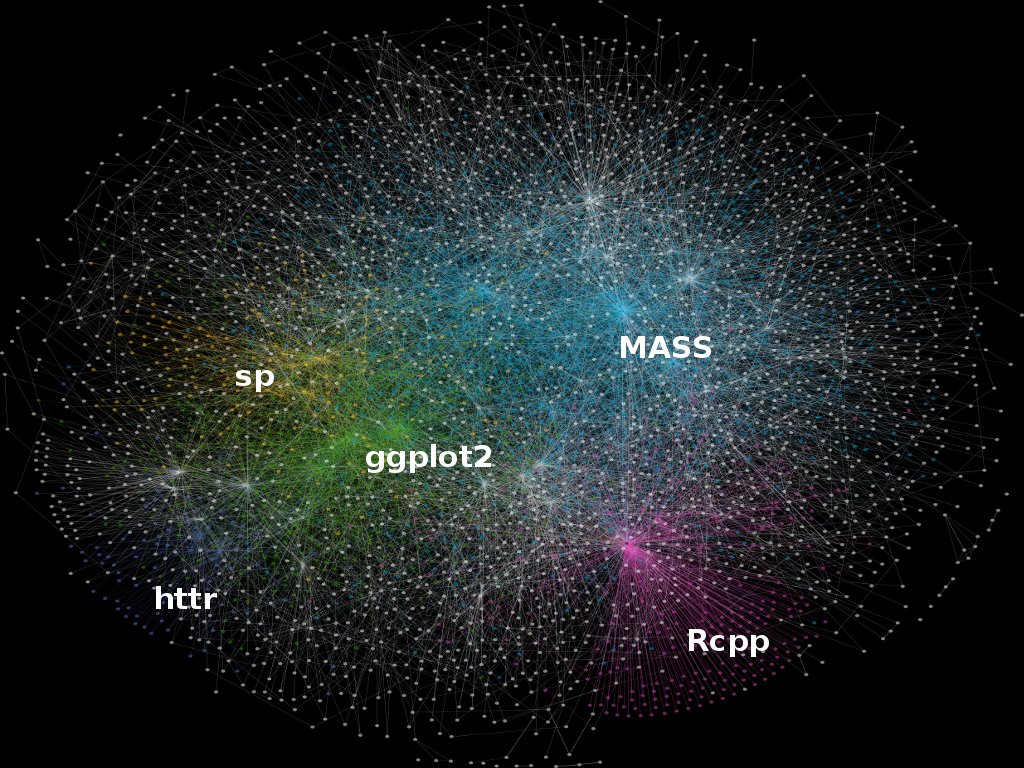
Features

Source: https://www.r-bloggers.com/on-the-growth-of-cran-packages/

R is an extremely flexible and (with the help of add-on packages) powerful language.

Scalability

As datasets have grown, so has the importance of efficient computing.

  • R was designed for efficiency - lots of 'leg-work' done in C
  • R is conducive to cloud and parallel computing
  • Easy to parallelise

Visualisation

source: https://github.com/Robinlovelace/GIS4TA

  • Vital for communication
  • Increasingly interactive

The R language

R as a giant calculator

5 * 5
1 + 4 * 5
4 * 5 ^ 2

Functions and objects

In R:

  • Everything that exists is an object
  • Everything that happens is a function

E.g., load a data object and find its dimension:

data(mpg, package = "ggplot2") # load the object mpg
dim(mpg) # use a function (dim) to do something with it
## [1] 234  11

Objects

  • R is object-orientated
  • Objects persist in memory for the duration of the session
  • Objects are usually assigned by the <- or = operator (usually identical)
  • Any names can be give to R objects, except special characters like \
  • Exercise: what do these commands do?
a = 1
b = 2
c = "c"
x_thingy = 4
a + b
a * b
a + c
a / x_thingy

Adding and removing objects

ls()
## [1] "a"        "b"        "c"        "mpg"      "x_thingy"
x <- x_thingy
rm(x_thingy)
x
## [1] 4
ls()
## [1] "a"   "b"   "c"   "mpg" "x"

Functions

"R, at its heart, is a functional programming (FP) language. This means that it provides many tools for the creation and manipulation of functions."

  • All functions have brackets (to run)
  • The arguments of the functions go in the brackets
replicate(n = 3, expr = x)
## [1] 4 4 4
exp(x)
## [1] 54.59815

Basic plotting

x = 1:9
y = x^2
plot(x = x, y =y) 

Demonstration then exercise: Getting used to RStudio and R

  • Open RStudio and have a look around
  • Create a new project
  • Create a new R Script: pass code to the console with Ctl-Enter
  • Use R as a calculator: what is:
  • Explore each of the 'panes'
  • Find and write down some useful shortcuts (Alt-Shift-K on Windows/Linux)

R/RStudio tricks

Printing the result during assignment

# Assignment of x
x <- 5
x
## [1] 5
# A trick to print x
(x <- 5)

The console or the script pane?

  • Is it part of a longer story that will ultimately be shared? (use script files)
  • Is it just playing that does not need to be stored? (use the console)

You can switch effortlessly between them with Ctl+1 and Ctl+2.

Assignment

  • Be warned: easy to overwrite data
x = 5 # the same as x <- 5
(x = x + 1)
## [1] 6

The R ecosystem

Choosing packages

  • With so many packages, simply choosing the right package can be hard work!
  • Fortunately there are well-known ways to decide on which package to use (see section 4.4 of Efficient R Programming):
    • Is it mature?
    • Is it actively developed?
    • Is it well documented?
    • Is it well used?
  • It's worth spending the time thinking about this: can save you hours later on

Getting help

Exercises (in groups)

  • Think about the kind of data and analysis you'll be using R for
  • Which packages have you be using to date? (if any)
  • Find 3 packages that could help: think about pros and cons
  • What are the alternatives to R for this work?