- Set up R and RStudio
- Understand the layout and functionality of RStudio
- Experiment with basic R expressions and data types
- Data manipulation
- Cluster Analysis
Agenda
Introduction
R is a programming environment
- uses a well-developed but simple programming language
- allows for rapid development of new tools according to user demand
- supports data analytics tasks
Downloading and installing R
- Visit CRAN: http://cran.r-project.org
- CRAN = Comprehensive R Archive Network
- Click a link on the right to download R for your system (Linux, Mac or Windows)
- Install R (it is safe to accept the default setting and keep clicking “Next”)
Step by step installation guides from YouTube:
RStudio
RStudio is a development environment for R, and provides many advanced features to improve efficiency and ease of use for R users.
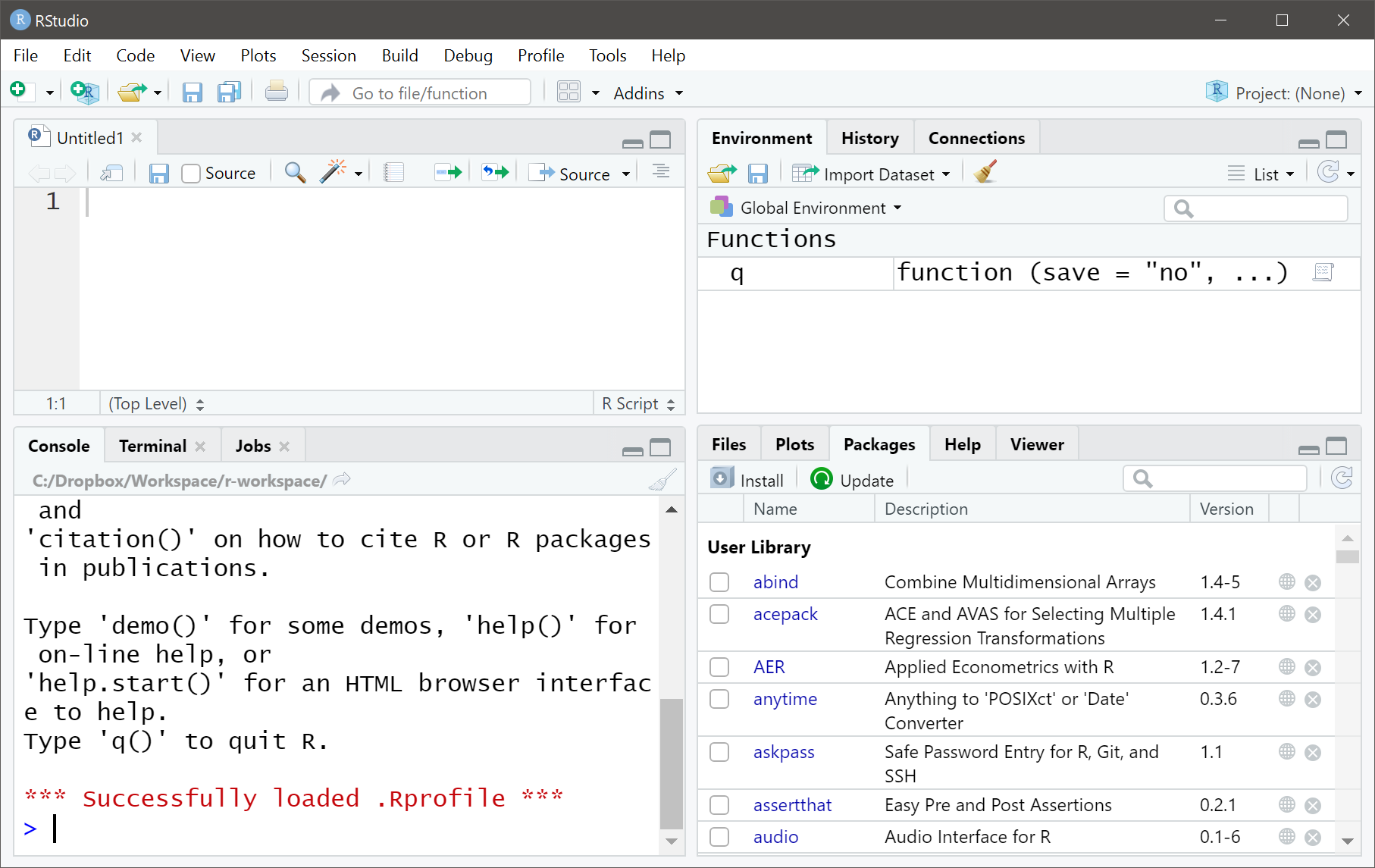
Downloading and installing RStudio
- Visit https://www.rstudio.com/products/rstudio/download/
- Under Installers for Supported Platforms, choose one that fits your system (Linux, Mac or Windows)

Getting started with RStudio
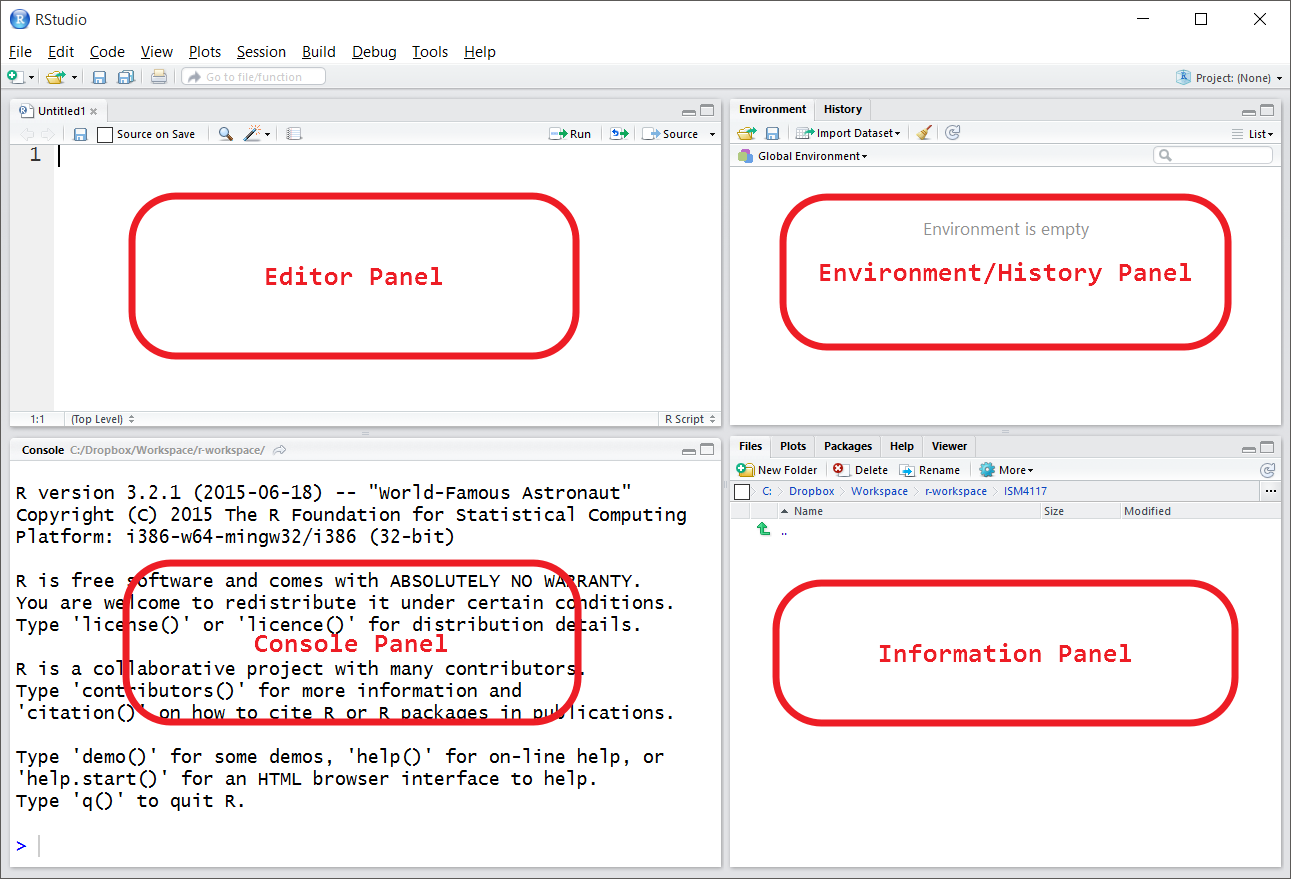
RStudio: console panel
This is the most important panel, because this is where R actually does stuff

RStudio: editor panel
Collections of commands (scripts) can be edited and saved.

RStudio: a typical workflow
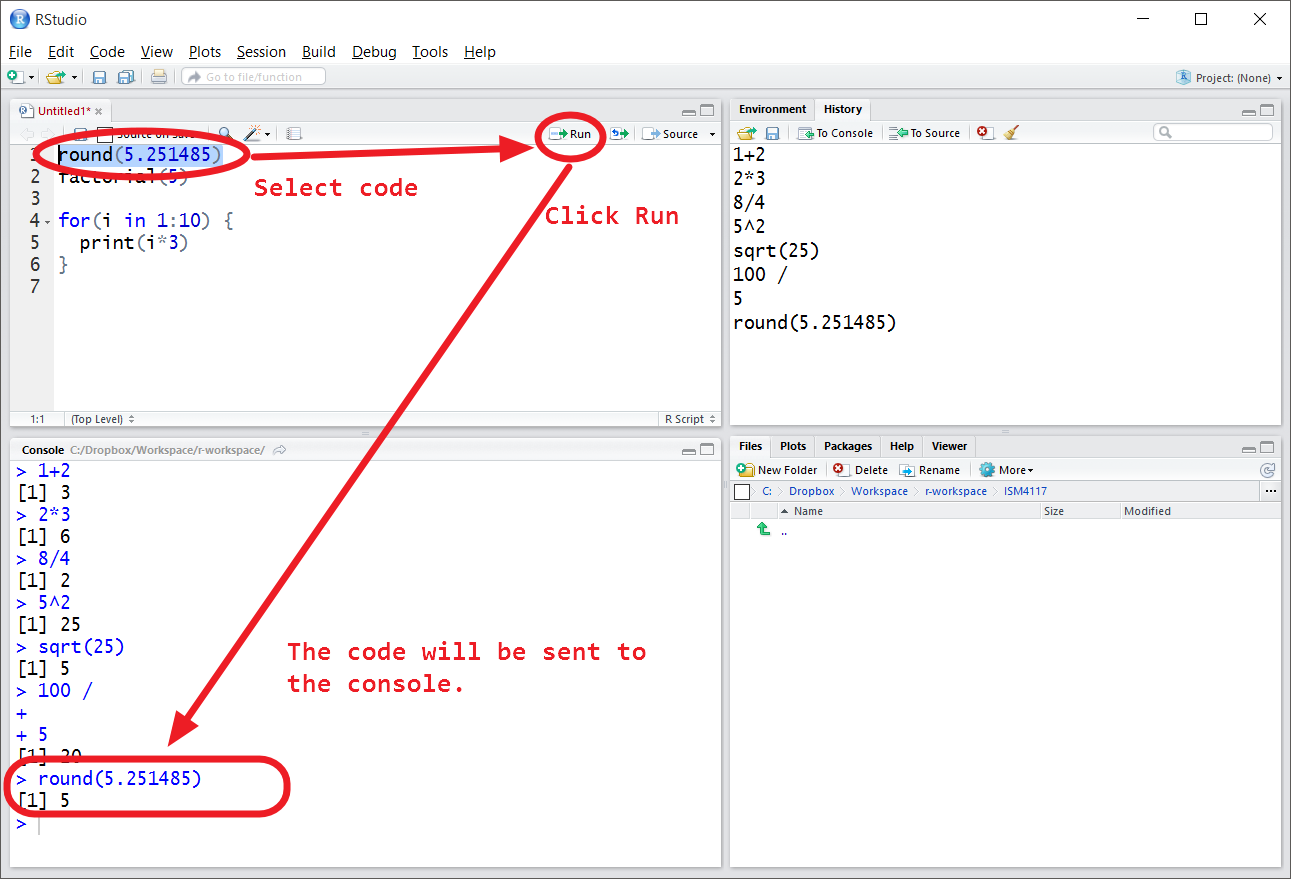
RStudio: a typical workflow (cont.)
There are ways to speed up the workflow:
If you don’t select any code, R will just execute the line where the blinking cursor is
Instead of clicking the “Run” icon, you can just use the keyboard shortcut: Ctrl + Enter
RStudio: run the whole R script

RStudio: save your R script

Operators: Arithmetics
7 + 5
## [1] 12
7 - 5
## [1] 2
7 * 5
## [1] 35
7 / 5
## [1] 1.4
Like a calculator, R also has many functions that let you do more sophisticated manipulations.
round(2.05)
## [1] 2
factorial(3) # 3! = 3 * 2 * 1
## [1] 6
sqrt(9) # square root
## [1] 3
Note:
- Use
#(number sign) to comment your codes - R will ignore anything in a line that follows
# - It is a good idea to comment your codes so that others can understand what you are trying to do.
Getting Help
There will be many occasions where you want to learn more about a built-in command or function. Type help(function_name) or ?function_name to get more information. For example:
help(factorial)
?factorial
Use two question marks to search the whole help database, especially when you don’t know exactly the function name. For example,
??read
Data types
R can recognize different types of data:
- numbers
- character strings (text)
- data frame
Data can have names
We can give names to data objects; these give us variables
Variables are created with the assignment operator, <- or =
Be careful that R is a case sensitive language. FOO, Foo, and foo are three different variables!
x = 2      # use the equal sign to assign value
y <- 3     # you can also use an arrow to assign value
x          # print the value of a variable by typing its name
## [1] 2
x * y
## [1] 6
The assignment operator also changes values:
x
## [1] 2
x <- 8
x
## [1] 8
Using names and variables makes code: easier to design, easier to debug, less prone to bugs, easier to improve, and easier for others to read
Variable names
Variable names cannot begin with numbers. Wise to avoid special characters, except for period (.) and underline (_)
Example of valid names:
- a
- b
- FOO
- my_var
- .day
Example of invalid names:
- 1
- 2nd
- ^mean
- !bad
- $
Data frame
A data frame is a set of vectors of equal length. Consider data frame as an Excel sheet or a database table.
Column names are preserved or guessed if not explicitly set
course <- c("MIS4730", "MIS4710", "MIS4950", "MIS1234")
num_of_students <- c(20, 10, 40, 30)
data_analytics_minor <- c(TRUE, TRUE, TRUE, FALSE)
df <- data.frame(course, n_students=num_of_students, data_analytics_minor,
                stringsAsFactors=F)
df # notice the column names and row names
##    course n_students data_analytics_minor
## 1 MIS4730         20                 TRUE
## 2 MIS4710         10                 TRUE
## 3 MIS4950         40                 TRUE
## 4 MIS1234         30                FALSE
Getting values from a column
There are many ways you can get values out of a column:
- The most readable way:
dataframe_name$column_name
df$course
## [1] "MIS4730" "MIS4710" "MIS4950" "MIS1234"
df$n_students
## [1] 20 10 40 30
Importing a dataset into R
Importing data into R is fairly simple. You can go to Canvas - Dataset Module to download the following data.
- HousePrices.csv
Working directory
Your working directory is the folder on your computer in which you are currently working.
# Show your current working directory
getwd()

# List the files and folders in the current working directory
list.files()
Set Working directory with GUI
You can set your working directory in the following ways:

Set Working directory with GUI
You can set your working directory in the following ways:

Set Working directory with GUI
You can set your working directory in the following ways:

Your turn
Create a new folder
QBA-Datasetfor this course; Download the HousePrices data and move them into the folderSet this new folder as your default working directory by Tools > Global option
Run
list.files()in the R console. Do you see these files?
What does the data look like?
You can view your data by double clicking the data
head() is a function allows you to see the top few rows of the data frame
df <- read.csv("HousePrices.csv")
head(df, n=3) # n indicates how many rows you'd like to see
##   X  price lot_size waterfront age land_value construction air_cond     fuel
## 1 1 132500     0.09         No  42      50000           No       No Electric
## 2 2 181115     0.92         No   0      22300           No       No      Gas
## 3 3 109000     0.19         No 133       7300           No       No      Gas
##        heat   sewer living_area fireplaces bathrooms rooms
## 1  Electric Private         906          1       1.0     5
## 2 Hot Water Private        1953          0       2.5     6
## 3 Hot Water  Public        1944          1       1.0     8
Create new variables
Reminder: the way to use a variable in the dataset: dataframe_name$column_name
For example, if we wanted to estimate the number of bedrooms using number of rooms minus number of bathrooms:
df$bedrooms <- df$rooms - df$bathrooms
Observe the variable list, how many variables do we have now?
Your Turn
Create a new variable a new variable price_per_bedroom which is price divided by the number of bedrooms we just created.
Cluster Analysis Case Study - Identify Teen Market Segments
You are a marketing senior analyst in a global consulting firm. Your manager gave you a project to conduct a more in-depth analysis of teenagers’ market segments so that your customer firm will be able to extend their market of products and increase their retail sales.
teens<-read.csv("snsdata.csv")
The data was sampled across our high school graduation years. The full text of their Twitter profiles were scraped and each teen’s gender, age, and number of friends were also recorded. The final dataset indicates how many times each word appeared in the person’s profile.
Step 1: Picking related variables
First, we select the variables that we use to a new variable.
Name the new variable as interests
In this case study, we will only make clusters by the words that teenagers mentioned. So we will use variables from collumn 5 to 40.
interests <- teens[5:40]
Step 2: Standardization
The standardization ensures all variables contribute equally to the cluster results
Here the function that we use for standardization is called scale.
lapply means apply standardization to all variables. as.data.frame make sure the data after standardization is the correct data format.
interests_z <- as.data.frame(lapply(interests, scale))
Step 3/4: Determine the number of variables and make clusters
To cluster the teenagers into marketing segments, we will use kmeans() function

Step 3/4: Determine the number of variables and make clusters
The first two commands can be skipped. We are just using a random seed to make sure we can the same results.
The clusters are created from an algorithm with a ramdom initial value, so the cluster results could be slightly different every time we run the codes.
# create the clusters using k-means
RNGversion("3.5.2") # use an older random number generator to get the same result
## Warning in RNGkind("Mersenne-Twister", "Inversion", "Rounding"): non-uniform
## 'Rounding' sampler used
set.seed(2345)
teen_clusters <- kmeans(interests_z, 5)
Step 5 Profiling
Cluster sizes
# look at the size of the clusters
teen_clusters$size
## [1] 871 600 5981 1034 21514
Take the cluster mean and evaluate the results
teen_clusters$centers
##    basketball   football      soccer    softball  volleyball    swimming
## 1  0.16001227  0.2364174  0.10385512  0.07232021  0.18897158  0.23970234
## 2 -0.09195886  0.0652625 -0.09932124 -0.01739428 -0.06219308  0.03339844
## 3  0.52755083  0.4873480  0.29778605  0.37178877  0.37986175  0.29628671
## 4  0.34081039  0.3593965  0.12722250  0.16384661  0.11032200  0.26943332
## 5 -0.16695523 -0.1641499 -0.09033520 -0.11367669 -0.11682181 -0.10595448
##   cheerleading    baseball      tennis      sports        cute          sex
## 1    0.3931445  0.02993479  0.13532387  0.10257837  0.37884271  0.020042068
## 2   -0.1101103 -0.11487510  0.04062204 -0.09899231 -0.03265037 -0.042486141
## 3    0.3303485  0.35231971  0.14057808  0.32967130  0.54442929  0.002913623
## 4    0.1856664  0.27527088  0.10980958  0.79711920  0.47866008  2.028471066
## 5   -0.1136077 -0.10918483 -0.05097057 -0.13135334 -0.18878627 -0.097928345
##          sexy         hot      kissed       dance        band    marching
## 1  0.11740551  0.41389104  0.06787768  0.22780899 -0.10257102 -0.10942590
## 2 -0.04329091 -0.03812345 -0.04554933  0.04573186  4.06726666  5.25757242
## 3  0.24040196  0.38551819 -0.03356121  0.45662534 -0.02120728 -0.10880541
## 4  0.51266080  0.31708549  2.97973077  0.45535061  0.38053621 -0.02014608
## 5 -0.09501817 -0.13810894 -0.13535855 -0.15932739 -0.12167214 -0.11098063
##        music        rock         god      church       jesus       bible
## 1  0.1378306  0.05905951  0.03651755 -0.00709374  0.01458533 -0.03692278
## 2  0.4981238  0.15963917  0.09283620  0.06414651  0.04801941  0.05863810
## 3  0.2844999  0.21436936  0.35014919  0.53739806  0.27843424  0.22990963
## 4  1.1367885  1.21013948  0.41679142  0.16627797  0.12988313  0.08478769
## 5 -0.1532006 -0.12460034 -0.12144246 -0.15889274 -0.08557822 -0.06813159
##          hair       dress      blonde        mall    shopping       clothes
## 1  0.43807926  0.14905267  0.06137340  0.60368108  0.79806891  0.5651537331
## 2 -0.04484083  0.07201611 -0.01146396 -0.08724304 -0.03865318 -0.0003526292
## 3  0.23612853  0.39407628  0.03471458  0.48318495  0.66327838  0.3759725120
## 4  2.55623737  0.53852195  0.36134138  0.62256686  0.27101815  1.2306917174
## 5 -0.20498730 -0.14348036 -0.02918252 -0.18625656 -0.22865236 -0.1865419798
##    hollister abercrombie          die       death        drunk       drugs
## 1  4.1521844  3.96493810  0.043475966  0.09857501  0.035614771  0.03443294
## 2 -0.1678300 -0.14129577  0.009447317  0.05135888 -0.086773220 -0.06878491
## 3 -0.0553846 -0.07417839  0.037989066  0.11972190 -0.009688746 -0.05973769
## 4  0.1610784  0.26324494  1.712181870  0.93631312  1.897388200  2.73326605
## 5 -0.1557662 -0.14861104 -0.094875180 -0.08370729 -0.087520105 -0.11423381
Profiling
By examining whether the clusters fall above or below the mean level for each interest category, we can begin to notice patterns that distinguish the clusters from each other.
In practice, this involves printing the cluster centers and searching through them for any patterns or extreme values

Profiling
Given this subset of the interest data, we can already infer some characteristics of the clusters. In the following table, each cluster is shown with the features that most distinguish it from the other clusters.

Association with other Features
First, save cluster IDs back to the original data
 # apply the cluster IDs to the original data frame
  teens$cluster <- teen_clusters$cluster
Using the aggregate() function, we can link the clusters to other unused characteristics/variables of the clusters.
# mean number of friends by cluster
aggregate(data = teens, friends ~ cluster, mean)
##   cluster  friends
## 1       1 41.43054
## 2       2 32.57333
## 3       3 37.16185
## 4       4 30.50290
## 5       5 27.70052