0.1 About swirl course on R
0.1.1 Preamble
For this course you need install R, RStudio and a sweep of packages onto your computer.
0.1.2 Download and install R
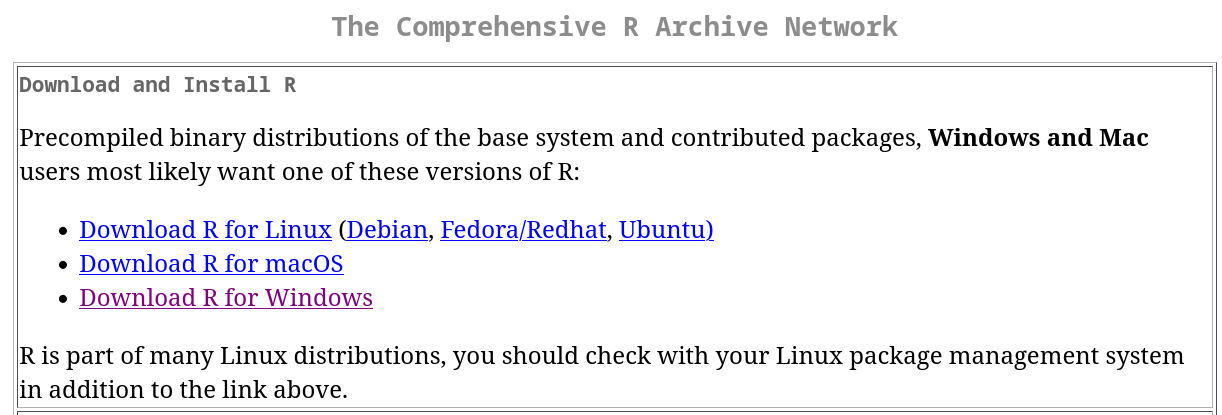
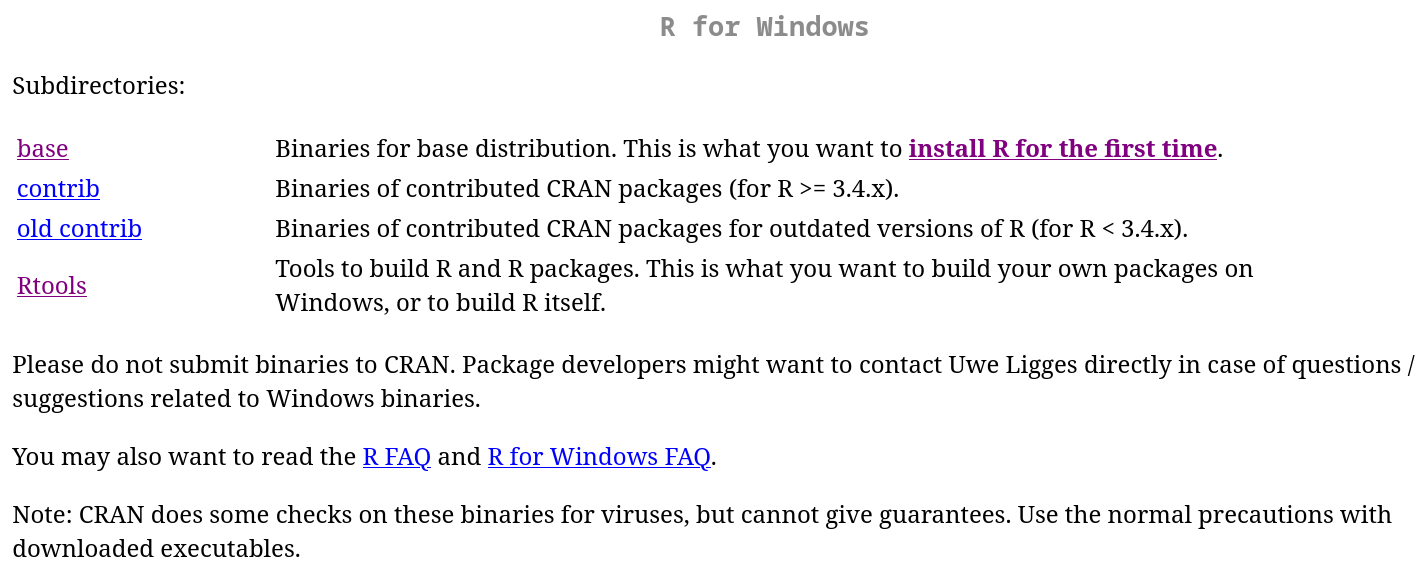
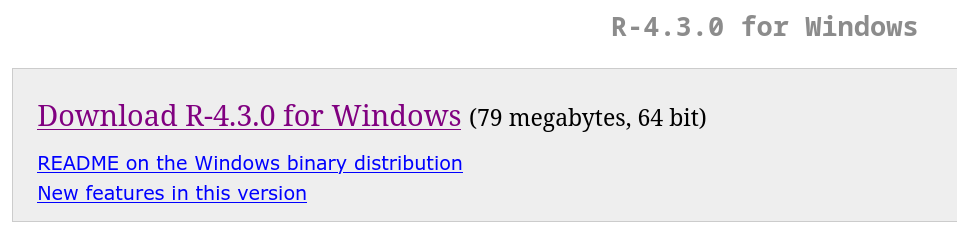
Latest version of R: see The Comprehensive R Archive Network. Follow the instructions to complete the installation process.
0.1.2.1 Link to download R and RStudio
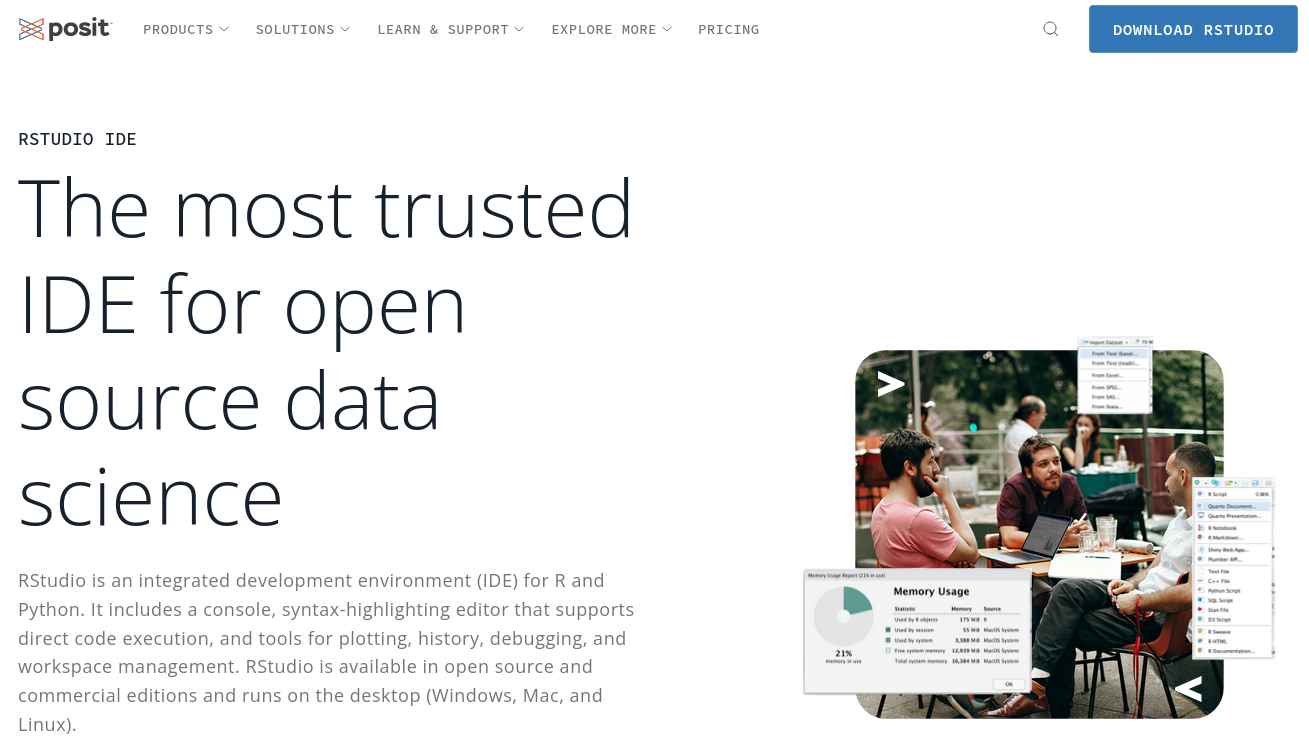
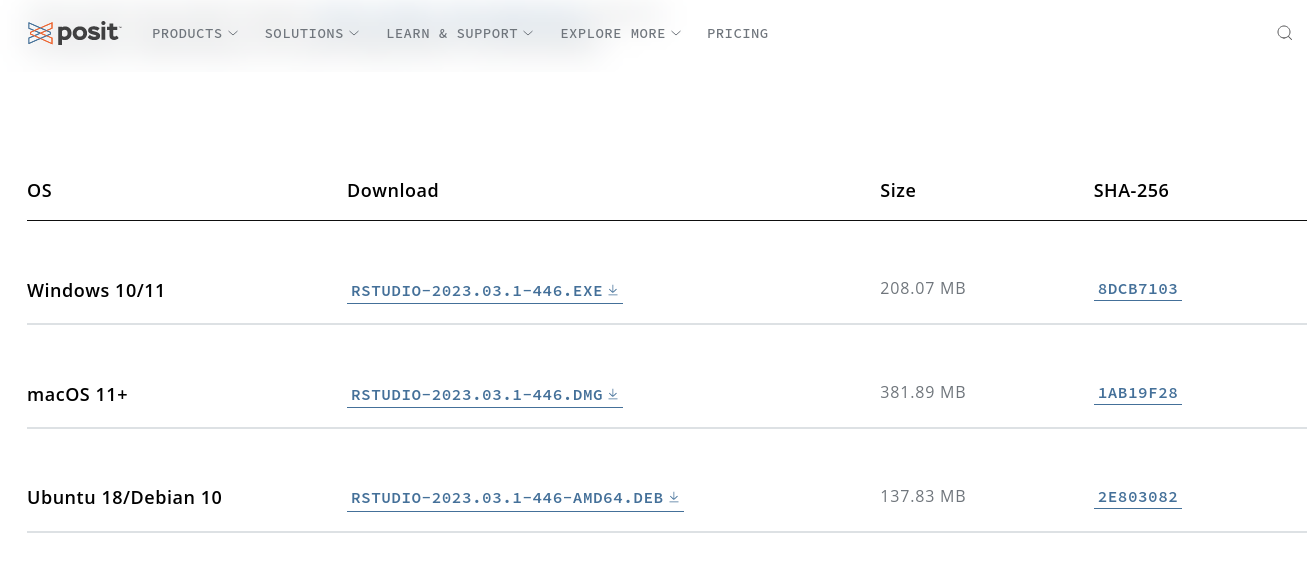
Please find the link https://posit.co/download/Rstudio-desktop/

0.1.2.2 RStudio
Latest version of RStudio Desktop can be obtained from this link
0.1.2.2.1 What is RStudio?
- RStudio is an integrated development environment (IDE)
- It is open-source and free.
- Built to help you write R code, run R code, and analyze data with R
- Text editor, project handling, markdown support, keyboard shortcuts, debugging tools, version control, …
- Within RStudio one can achieve almost all that is needed to complete a typical science project, be it:
A technical report
A scientific manuscript
Web pages (including blogs)
…
1 swirl courses
1.1 Install and run a course automatically from swirl
This is the preferred method of installing courses. It automates the process by allowing you to do everything right from the R console.
Make sure you have a recent version version of swirl:
# install.packages("swirl")Enter the following from the R console, substituting the name of the course that you wish to install:
library(swirl)Warning: package 'swirl' was built under R version 4.3.3| Hi! Type swirl() when you are ready to begin.# install_course("Course Name Here") chose the course you are interested in # e.g., # install_course("R Programming") # swirl()For example,
install_course("R Programming")will install the R Programming course. Please note that course names are case sensitive!
after installing install_course("R Programming") , type swirl().

p
As i have already downloaded two packages it is showing R Programming and Regression Models, both were showing in my window. In your case it may be only one R Programming .
so in the selection type 1 and press enter key

Then all 15 courses in the R programming will show automatically

till you get ... always press enter key till you get > symbol in the cursor. Read all the commands carefully and take action accordingly.